 Church TV OS
Getting started
From a new account to a screen in about ten minutes
You will need a TV with a Fire TV or Google TV device on it, and a video or picture to play. Here is the whole path.
Create your account and your church
Go to app.churchtvos.com and choose First time? Create an account. Confirm your email, then enter your church's name and the name of your first campus. You are now the church's owner, and a short checklist helps you from there.
Add campuses and rooms
A site is a campus or building. A location is a room in it: Preschool, Main lobby, Auditorium. Locations are tagged for what they do (Kids, Signage, Slides) so the right schedules find the right rooms.
Put the app on a TV and pair it
Install the TV app on a Fire TV or Google TV device and open it. The TV shows Pair this TV and a six-character code. In the dashboard open Screens, choose Pair a TV, type the code, pick the room, and give the TV a name like "Lobby left". Within seconds the TV belongs to your church.
The Fire TV app is going through Amazon's review. Tell us about your church and we will let you know when it is ready.
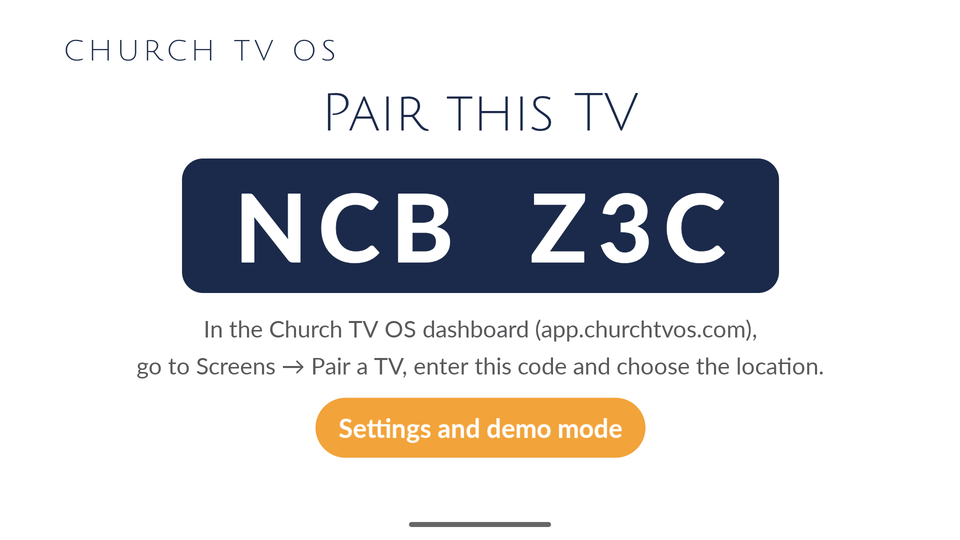
Add your first content
Upload a video or picture. Then build a playlist for Kids or Signage, or a deck for Slides. Try a countdown followed by a video for Kids, a text sign for Signage, or a title slide and a song for Slides. Already have a PDF or PowerPoint? Import it.
Schedule it
Open the calendar, pick a screen, and drag across a time. Choose the playlist or deck and save. Signage plays by itself whenever its slot is active. Kids and Slides wait for the person in the room, so a leader is always in control. TVs download what is coming ahead of time.
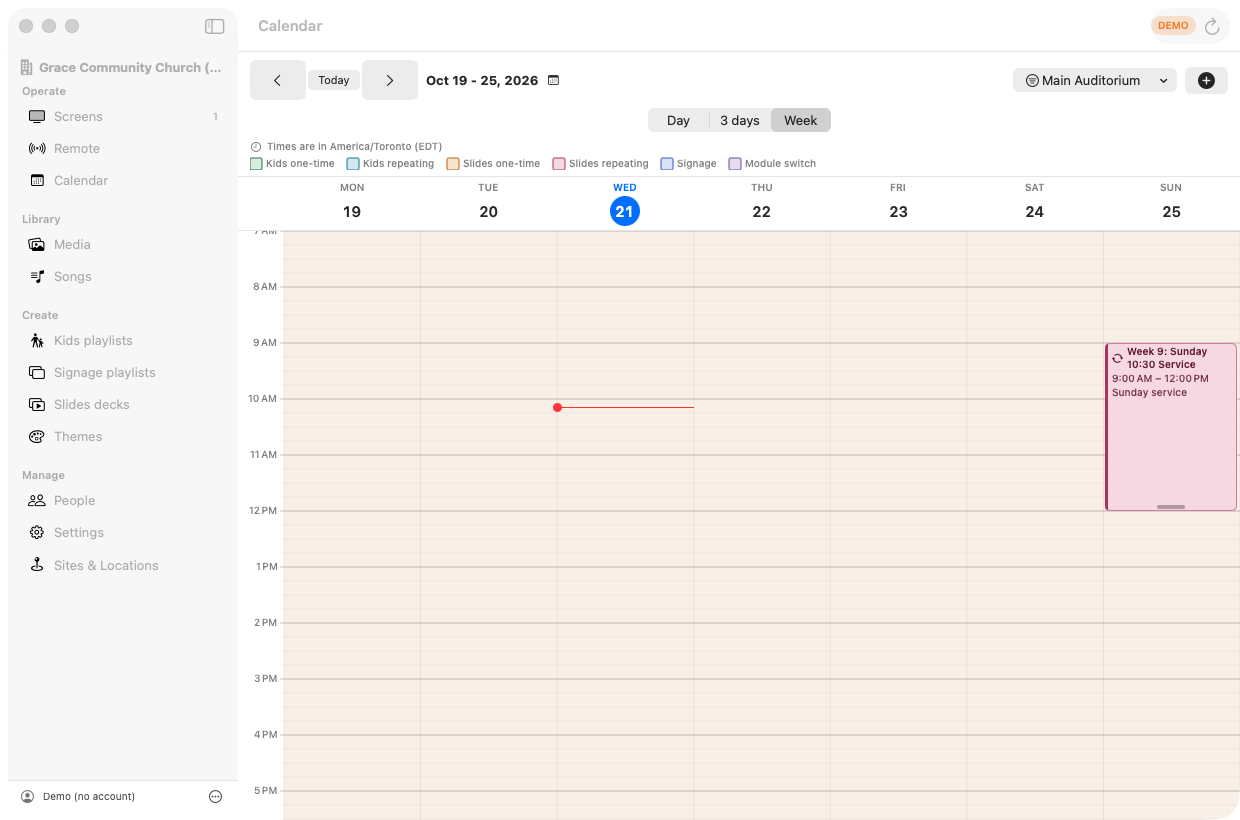
Run it, and invite your team
Use the TV remote, or open the app on your phone and use it as a remote. Then add volunteers under People with just the role, module and campus they need.


Good to know
- A TV that is not scheduled for anything shows a black screen (Signage) or waits on its home screen. It never shows stale content.
- A TV can run different modules on different days: Signage on weekdays, Kids on Sunday.
- The TV app has a demo mode with sample content that needs no account.
- Stuck? The Quick start guide goes into more detail, and the support page lists everything else.
Ready to pair your first TV?
Create a free account and follow the checklist.